Why Is My Laptop Fan So Loud? Causes and How to Quiet It
Laptop fan running loud all the time? Learn when fan noise is normal, what makes it loud, and simple ways to quiet it on Windows and Mac.
On this page
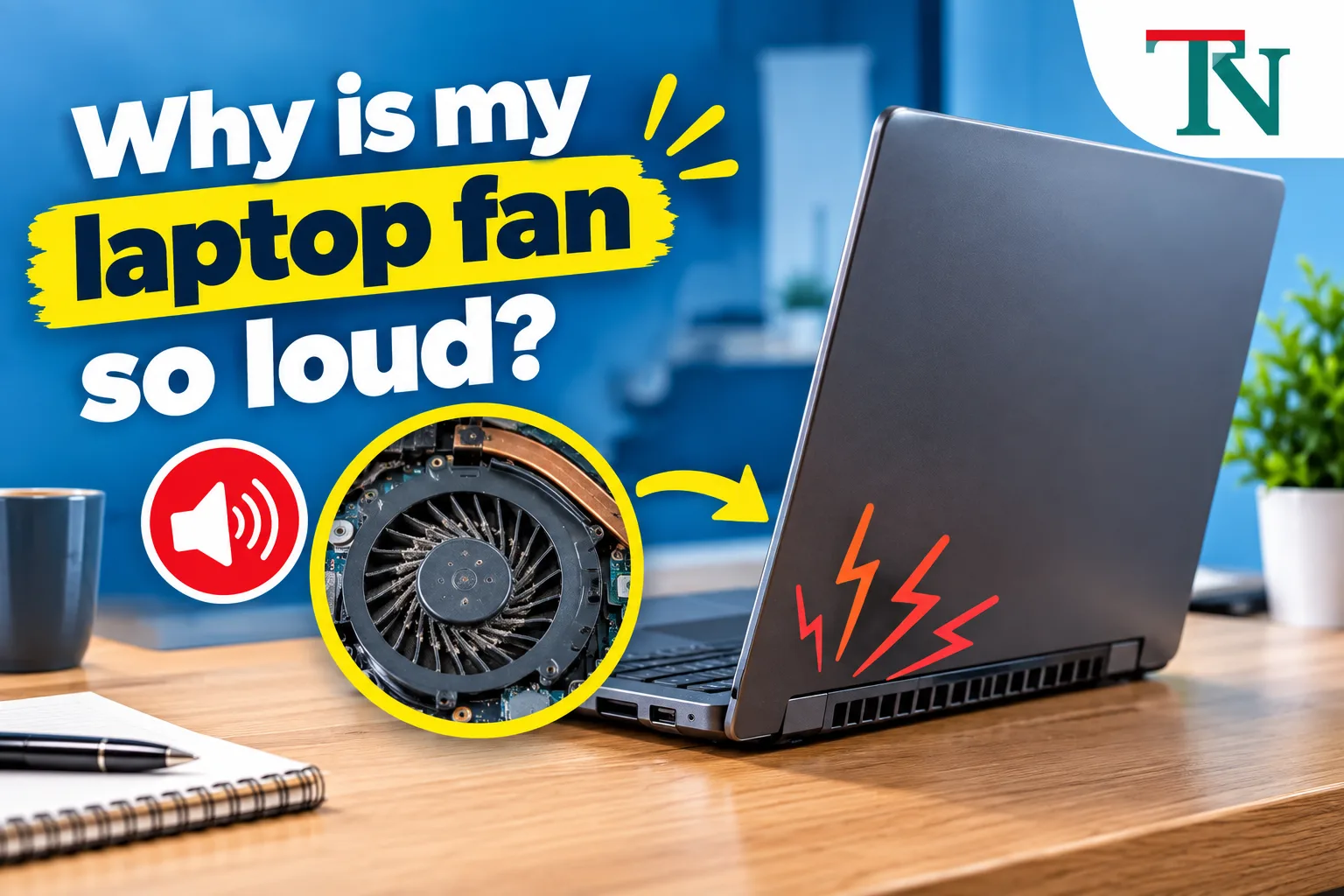
A laptop fan gets loud because the laptop is hot and the fan is working hard to cool it. That is normal during games, video calls, and big downloads. But if the fan is loud all the time, even with nothing open, the usual causes are background programs, dust in the vents, a blocked air flow, or a performance setting that pushes the processor hard.
Here is how to find the cause and quiet your fan on Windows and Mac.
Is the noise normal?
| Situation | Normal? |
|---|---|
| Loud during games, video editing, or video calls | Yes |
| Loud for a few minutes after turning on or waking up | Usually, updates may be running |
| Loud while charging and working hard | Usually |
| Loud all the time with nothing open | No, something is using power or airflow is blocked |
| Grinding, rattling, or clicking sounds | No, the fan may be damaged |
| Very hot and shutting down | No, get it checked |
9 reasons your laptop fan is loud (and how to fix them)
1. Programs are running in the background
Even when you are not doing anything, your laptop may be installing updates, scanning for viruses, syncing files, or indexing your search. This keeps the processor busy, which makes heat.
Fix:
- Windows: Press Ctrl + Shift + Esc to open Task Manager. Click the CPU column to sort it. Close anything using a lot that you do not need.
- Mac: Open Activity Monitor (in Applications > Utilities) and click the CPU tab.
If Windows Update or an antivirus scan is running, let it finish. The fan should calm down afterward.
2. Too many browser tabs
Browsers use a lot of processing power, especially with video, ads, and web apps. A single heavy tab can keep your fan spinning.
Fix: Close tabs you do not need, and turn on your browser's memory saver setting. Our guide on cutting down Chrome memory use shows how.
3. The vents are blocked
Laptops pull in cool air and push out hot air through vents, usually on the bottom, sides, or back. Using a laptop on a bed, pillow, couch, or your lap blocks those vents.
Fix: Use your laptop on a hard, flat surface like a desk or table. Keep vents at least a few inches away from walls and other objects.
4. Dust is clogging the fan
Over time, dust and pet hair build up in the vents and fan. The fan has to spin faster to move the same amount of air.
Fix:
- Turn off and unplug the laptop.
- Use a can of compressed air and blow short bursts into the vents at an angle.
- Hold the can upright, and do not shake it.
For a deep cleaning inside the laptop, take it to a repair shop. Opening it yourself can void the warranty on some models.
5. The power mode is set to maximum performance
High-performance settings let the processor run faster and hotter, which makes the fan spin more.
Fix:
- Windows: Go to Settings > System > Power & battery and set Power mode to Balanced or Best power efficiency when you do not need full speed.
- Mac: Go to System Settings > Battery and try Low Power Mode for quiet everyday use.
Many laptop makers also have their own apps, like Lenovo Vantage, HP Command Center, or MyASUS, with a quiet or cool fan mode.
6. The room is hot
A hot room means hotter air going into the laptop. The fan has to work harder.
Fix: Keep the laptop out of direct sunlight, use it in a cooler room when you can, and consider a cooling pad for long gaming or work sessions.
7. Software or drivers are out of date
Updates can fix bugs that make the processor or fan work harder than needed. Laptop makers sometimes release BIOS or firmware updates that improve fan control.
Fix:
- Windows: Go to Settings > Windows Update.
- Mac: Go to System Settings > General > Software Update.
- Check your laptop maker's support app or website for driver and BIOS updates.
8. Malware is using your processor
Malicious software can run hidden programs that keep your processor busy and your fan loud.
Fix: On Windows, open Windows Security and run a Full scan. Only install programs from trusted websites and official app stores.
9. The fan or cooling system is worn out
If the fan grinds, rattles, clicks, or squeals, it may be damaged or its bearings may be worn. On older laptops, the thermal paste that helps move heat away from the processor can also dry out.
Fix: Take the laptop to a repair shop. Replacing a fan or thermal paste is usually quick for a technician.
Gaming laptops
Gaming laptops have powerful chips that make a lot of heat, so loud fans during games are expected. To keep noise and heat down:
- Use the maker's app to pick a balanced or quiet mode when you are not gaming.
- Cap the frame rate in your games. Running at 60 frames per second instead of the highest possible makes much less heat.
- Lower graphics settings a little, like shadows and effects.
- Play on a desk with a cooling pad, and keep the back vents clear.
- Keep the laptop plugged in while gaming, but let it rest between long sessions.
MacBook fan loud?
MacBooks with Apple chips often run quietly, and some models have no fan at all. If your MacBook's fan is loud:
- Check Activity Monitor for apps using a lot of CPU. Browser tabs and video apps are common causes.
- Make sure the vents are not blocked. On many models they are near the hinge.
- Restart the Mac to stop stuck processes.
- Keep macOS updated.
- If the fan stays loud with nothing running, contact Apple Support.
Quiet fan checklist
- Check Task Manager or Activity Monitor for busy programs.
- Close extra browser tabs.
- Use the laptop on a hard surface.
- Blow dust out of the vents with compressed air.
- Switch to a balanced or quiet power mode.
- Install updates.
- Run a virus scan.
- Get it checked if you hear grinding or clicking.
Loud fan and slow laptop?
If your laptop is loud and slow, it may be running hot and slowing itself down to cool off. This is called thermal throttling. Clearing dust, closing background programs, and freeing up storage usually help. Our guide on speeding up a slow laptop walks through the rest of the fixes.
When to get help
Take your laptop to a repair shop if:
- The fan makes grinding, rattling, or clicking sounds
- The laptop gets too hot to touch or shuts off by itself
- The fan runs at full speed all the time, even right after turning on
- Cleaning the vents and closing programs do not help
How hot is too hot?
A loud fan is the laptop's way of keeping the processor cool. These are rough guides for most laptops:
| What the laptop is doing | Normal processor temperature |
|---|---|
| Sitting idle | About 30 to 50°C (86 to 122°F) |
| Heavy work like games or video | About 60 to 85°C (140 to 185°F) |
| Staying above 90°C (194°F) | Too hot. Clean the vents and check the fan |
Short spikes during heavy work are normal. Temperatures that stay very high, along with a loud fan, mean the cooling system needs help.
How to check your laptop's temperature
- Windows: Task Manager does not show the processor temperature. A free tool such as HWMonitor or Core Temp can show it. On laptops with a separate graphics chip, Task Manager may show the GPU temperature under the Performance tab.
- Mac: macOS does not show temperatures in its menus. Listen for the fan and watch Activity Monitor for apps using a lot of CPU.
Should you replace the thermal paste?
Thermal paste is a thin layer between the processor and the cooler that helps heat move away. Over several years it can dry out. Replacing it can help if:
- The laptop is several years old.
- You already cleaned the vents and fan.
- It still runs hot and loud, slows down, or shuts off under load.
Opening a laptop can void the warranty and is easy to get wrong, so most people should have a repair shop do it.
Key points
A loud fan usually means your laptop is working hard or cannot get rid of heat. Check for busy background programs, close extra tabs, keep the vents clear on a hard surface, and blow out dust with compressed air. Use a balanced power mode and keep your software updated. If the fan grinds or the laptop overheats, have it checked by a technician.
Sources
This guide was checked against these official and manufacturer sources.
Frequently asked questions
Is it bad if my laptop fan is loud?
Not usually. A loud fan during games, video calls, or big downloads is normal, because the fan is keeping the laptop cool. It is a problem if the fan is loud all the time with nothing open, if the laptop is very hot, or if the fan makes grinding or rattling sounds.
Why is my laptop fan loud when I am not doing anything?
Something is likely running in the background, such as Windows Update, a virus scan, cloud syncing, or a browser tab. Open Task Manager on Windows or Activity Monitor on a Mac to see what is using the processor. Dust in the vents can also make the fan run harder.
Can I clean my laptop fan myself?
You can safely blow dust out of the vents with short bursts of compressed air while the laptop is turned off and unplugged. Opening the laptop to clean the fan directly can void the warranty on some models, so a repair shop is the safer choice for deep cleaning.
Does a cooling pad help a loud laptop fan?
It can. A cooling pad lifts the laptop and blows extra air underneath it, which helps it stay cooler, so the internal fan does not need to spin as fast. It helps most for gaming and heavy work.

Written by
Agha Ali Abbas
Agha Ali Abbas is the founder and editor of TimeToNote. He has worked in SEO and content writing for 18 years, and he checks every guide against manufacturer documentation and official sources before it goes live.
Related guides

Tech Problems
Why Is My Laptop So Slow? 12 Causes and Easy Ways to Speed It Up
Laptop running slow? Find out why, from too many startup apps to a full hard drive, and follow these simple steps to make Windows or Mac laptops fast again.
9 min read
Internet & Apps
Why Is Google Chrome So Slow? 12 Easy Ways to Speed It Up
Chrome running slow or freezing? Find out why, from too many tabs to heavy extensions, and use these 12 simple fixes to make Chrome fast again.
8 min read

Tech Problems
Why Does My Bluetooth Keep Disconnecting? 12 Fixes That Work
Bluetooth headphones, speaker, or car keep cutting out? Learn the common causes and follow these simple fixes for iPhone, Android, Windows, and Mac.
8 min read
More guides you may need
Tech Problems
Why Does My Phone Screen Keep Dimming? How to Stop It on iPhone and Android
Phone screen getting darker by itself? Learn the common causes, from auto-brightness to heat, and the settings that stop it on iPhone and Android.
7 min read
Tech Problems
Fingerprint Not Working on Android or iPhone? 10 Easy Fixes
Phone won't read your fingerprint? Try these 10 fixes for Android and iPhone Touch ID, from cleaning the sensor and re-adding your print to screen protector problems.
7 min read