Alexa Says Device Is Unresponsive? 9 Fixes for Smart Plugs and Lights
Alexa says your smart plug or light is unresponsive, even when it works? Check the Wi-Fi band, the skill link and the reset steps that fix it for good.
On this page
When Alexa says a device is unresponsive, it could not get a reply from your smart plug or light in time. In most homes the cause is a weak or changed Wi-Fi connection, a broken skill link, or a plug that needs a reset. Restart the plug and router, test the plug in its own app, then re-link the skill and discover the device again.
You say "Alexa, turn on the lamp", and she answers "[Lamp] is unresponsive". Sometimes the lamp even turns on first. It is one of the most common smart home complaints, and it is rarely a sign that the plug is dead. Usually one link in a short chain has broken, and finding which one takes a few minutes.
What "unresponsive" actually means
Your voice command takes a longer trip than you might expect. In most setups it goes from your Echo to Amazon, then to the plug maker's cloud (through the "skill" you enabled), and finally over your Wi-Fi to the plug. If any link is slow or broken, Alexa gives up waiting and says the device is unresponsive.
That is helpful, because it means you can test each link on its own:
| What you see | Most likely broken link |
|---|---|
| The plug's own app cannot switch it either | The plug, its power, or your Wi-Fi |
| The plug's app works but Alexa says unresponsive | The skill link or the device entry in Alexa |
| Alexa says unresponsive but the plug still switches | Slow reply: weak signal or a slow cloud connection |
| Everything stopped after a new router or password | The plug is still trying to join the old network |
| Only one plug fails, others are fine | That plug's signal, firmware, or a duplicate entry |
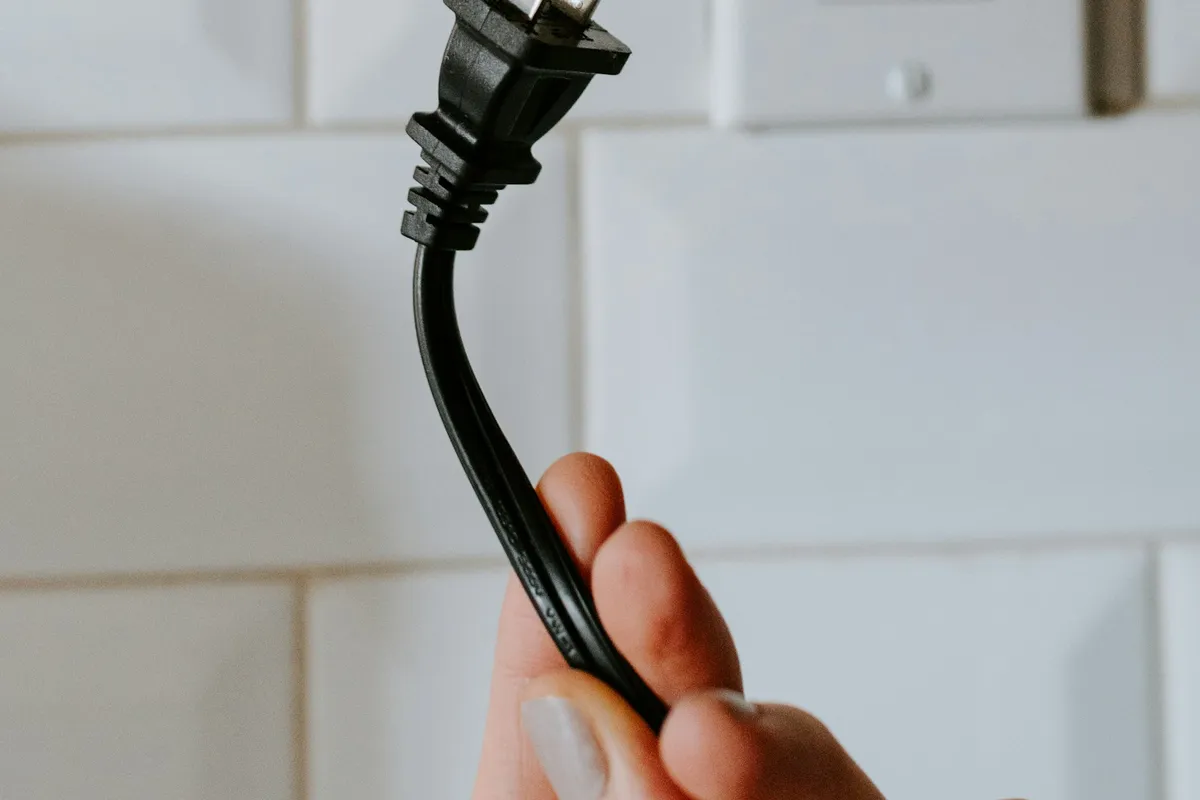
Fix 1: Test the plug in its own app
Before you touch Alexa, open the app that came with the plug (Kasa, Tapo, Wyze, Smart Life and Meross are common ones). Try switching the plug on and off there.
- If it works, the plug and your Wi-Fi are fine. Skip ahead to the skill and device steps.
- If it fails or shows offline, the problem is the plug's connection. Do Fixes 2 to 4 first.
Also look at the plug itself. Most have a small light that shows its state. A light that blinks quickly usually means the plug is waiting to be set up or cannot find Wi-Fi. Your manual lists what each pattern means.
Fix 2: Restart the plug, the router and the Echo
This simple step solves a lot of cases. Amazon's own help pages start with it, for both the smart home device and the Alexa device.
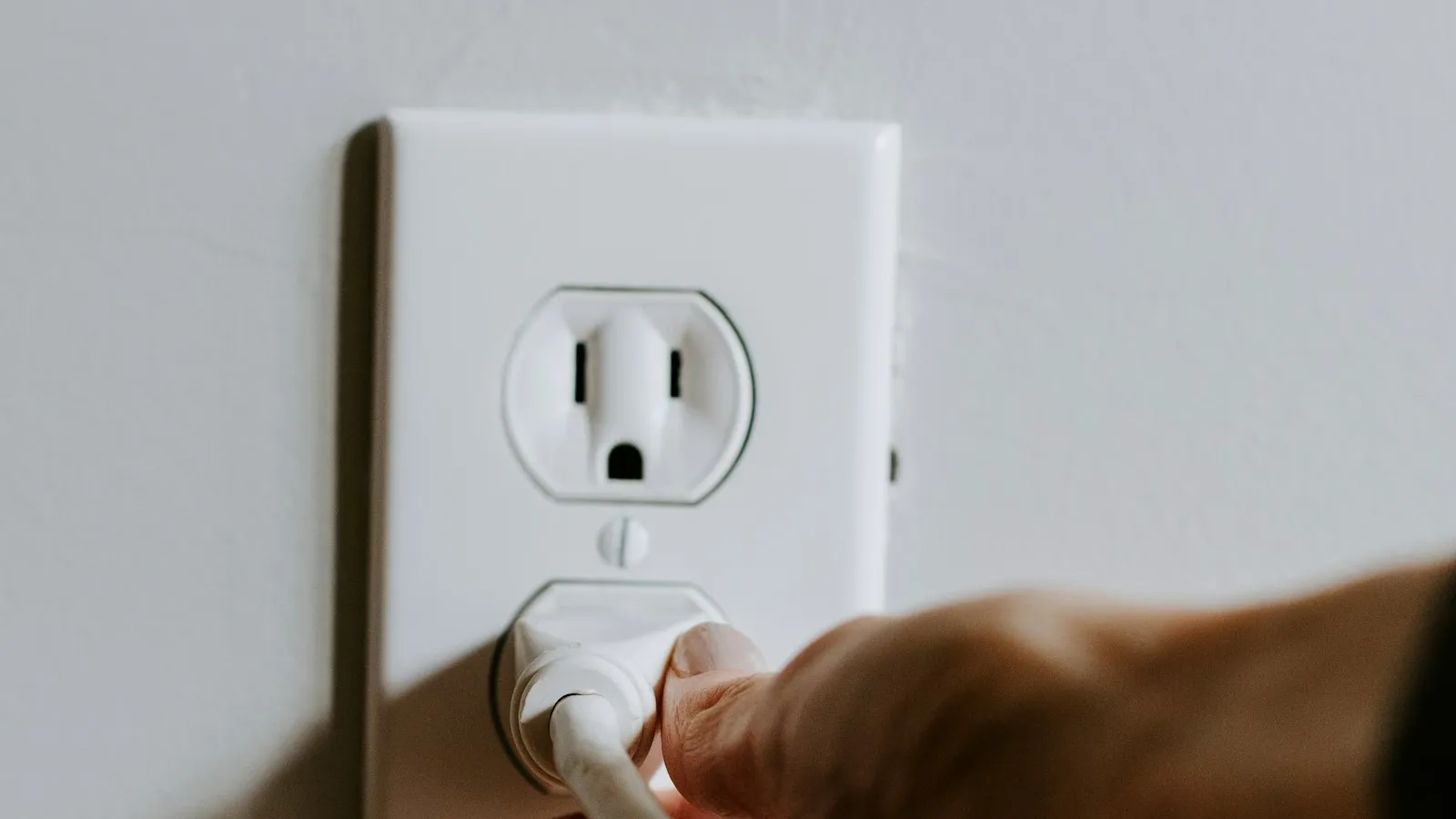
- Unplug the smart plug from the wall (or switch off the lamp's power).
- Unplug your router and modem, wait 60 seconds, and plug them back in.
- Unplug your Echo, wait a few seconds, and plug it in.
- Wait a few minutes for everything to reconnect, then plug the smart plug back in.
Give the router a full minute or two to come back before you test again. Devices that wake up before the Wi-Fi is ready sometimes stay stuck.
Fix 3: Check the Wi-Fi band and the signal
Most inexpensive smart plugs only work on the 2.4 GHz Wi-Fi band. They cannot join a 5 GHz network at all. Many routers show both bands as a single network name, and that can confuse the plug during setup or when it reconnects.
What to check:
- Signal strength. Walls, a microwave, and a distant router all weaken 2.4 GHz. Test by bringing the plug to a room close to the router. If it works there, the signal was the problem.
- Band names. If your router lets you, give the 2.4 GHz network its own name, so the plug always joins the right one.
- Network name and password. Very long names, spaces, or special characters can cause trouble on some plugs. If the plug will not join, a simpler password often helps.
- Too many devices. A busy router with dozens of gadgets can drop the weakest ones.
If your whole Wi-Fi feels shaky, work through what to check when your Wi-Fi is not working first, because a smart plug cannot be more stable than the network under it.
Fix 4: Reconnect the plug after a router or password change
If the trouble began right after you replaced your router, changed the Wi-Fi name, or changed the password, the plug is still looking for the old network. It will never reconnect on its own.
Put the plug back into setup mode (hold its button until the light blinks fast, as described in the manual), then reconnect it to your Wi-Fi from the maker's app. The plug usually keeps its name and schedules once it is back online.
Fix 5: Re-link the skill in the Alexa app
Each brand connects to Alexa through a skill, and that link can break after a password change, an app update, or a long gap.
- Open the Alexa app and go to More, then Skills & Games, then Your Skills.
- Find the skill for your plug's brand and open it.
- Choose Disable skill, then enable it again and sign in with the account you use in the plug's app.
- Let Alexa discover your devices when it offers.
Menu names change a little between app versions, but the idea is the same: disconnect the brand and connect it again.
Fix 6: Delete the device and discover it again
If the device entry itself is stale, remove it and add it fresh. Amazon recommends this for devices that used to work and have stopped responding.
- In the Alexa app, open Devices and find the plug.
- Open its settings and choose Delete (or remove the device).
- Say "Alexa, discover my devices", or use the add device option in the app.
- Wait about 45 seconds. The plug should come back as a new device.
You may need to add it to your rooms, groups and routines again, so note them first.
Fix 7: Update the plug and check it is compatible
Open the maker's app and look for a firmware update for the plug. Updates fix connection bugs. Also make sure the model is listed as compatible. Amazon says to look for the "Works with Alexa" badge, which means the device has been certified.
A cheap plug from an unknown brand may use an app or skill that is no longer maintained. If the skill stopped working for everyone, no fix on your side will help.
Fix 8: Clean up duplicates and rename the device
Over time Alexa can collect several entries for one plug, such as an old name, a group, and a "ghost" copy left from an earlier setup. Commands can end up going to the wrong one.
- Delete any entry you do not use.
- Give each plug a short, plain, unique name, like "bedroom lamp". Avoid names that sound like another device or room.
- If the plug is in a group, remove it and add it back.
Fix 9: Factory reset the plug
If nothing else works, reset the plug to factory settings. Amazon's help page for third-party smart plugs says to remove the device in the Alexa app, follow the maker's steps to reset an unresponsive device, and then reconnect it to Alexa.
- Delete the plug from the Alexa app.
- Reset the plug using the maker's method (often holding its button for 5 to 10 seconds, but check the manual for your model).
- Set it up again in the maker's app on 2.4 GHz Wi-Fi.
- Link or re-link the skill, then discover the device in Alexa.
If Alexa says unresponsive but the device works
This is the most annoying version. The lamp does turn on, yet Alexa says it is unresponsive. It usually means the command arrived but the confirmation did not make it back in time.
- Improve the plug's signal, since a slow reply is often a weak signal.
- Reduce the number of devices on the same 2.4 GHz network if you can.
- Make sure the plug's firmware and the skill are up to date.
- If it only happens now and then, and the plug works every time, you can live with it, but a router upgrade is often the real fix. If your connection is slow in general, see why your internet may be so slow.
When the plug itself is the problem
Replace the plug if it keeps dropping off every few days, gets very hot, makes buzzing sounds, or shows signs of damage. Cheap plugs wear out, and a heat or smell problem is a safety issue, not a software one. Check the load rating printed on the plug, and do not run space heaters or other high-power devices through a plug that is not rated for them.
How to stop it coming back
- Keep the plug's app and firmware updated.
- Place the router or an extender closer to the area where the plugs sit.
- If your router allows it, give the plug a fixed address so it does not change.
- Do not rename or reorganize devices in Alexa while troubleshooting, and make one change at a time so you know what worked.
- If you change your Wi-Fi password, reconnect your smart devices the same day.
A five-minute checklist
If you want the shortest path, follow this order and test after each step:
- Open the plug's own app and switch the plug. Does it work?
- Unplug the plug, wait a few seconds, plug it back in.
- Restart the router and wait two minutes.
- Check the plug is on a 2.4 GHz network and within good range.
- Disable and enable the skill, and sign in again.
- Delete the plug in the Alexa app and say "Alexa, discover my devices".
- Only then reset the plug and set it up again.
Making one change at a time matters. If you change five things at once and it starts to work, you will not know what fixed it, and you will not know what to do the next time.
Why it keeps happening to the same plug
If one plug is always the problem and the others are fine, it is usually in a weaker spot of the house, or it is an older or cheaper model. Moving it closer to the router for a day is a good test. If it behaves there, add a Wi-Fi extender or a mesh node near the plug instead of replacing it.
The short version
Alexa says a device is unresponsive when the chain between your Echo, the maker's cloud and the plug breaks or is too slow. Test the plug in its own app, restart the plug, router and Echo, make sure it is on 2.4 GHz Wi-Fi, then re-link the skill and delete and rediscover the device. If that fails, reset the plug and set it up again.
Sources
This guide was checked against these official and manufacturer sources.
Frequently asked questions
Why does Alexa say a device is unresponsive when it works?
Alexa checks the device's status through the maker's cloud. If that reply is slow or missing, Alexa says unresponsive even though the command may still reach the plug. A weak Wi-Fi signal, a router that was restarted, or a broken skill link are the usual causes.
Do smart plugs need 2.4 GHz Wi-Fi?
Most low-cost smart plugs only connect to 2.4 GHz Wi-Fi. If your router combines 2.4 and 5 GHz under one name, setup can fail or the plug can drop off later. Check the plug's manual, and if needed give the 2.4 GHz band its own name.
Do I have to delete the device in the Alexa app?
Not at first. Try a restart, check the maker's app, and re-link the skill. If it is still unresponsive, delete the device in the Alexa app and discover it again. Amazon recommends this when a device that used to work has stopped responding.
Will a factory reset of the plug fix it?
It often does when the plug is stuck after a router or password change. A reset erases the Wi-Fi details, so you must set the plug up again in the maker's app and then link it to Alexa again.
Is it the Echo or the plug that is broken?
Ask Alexa something simple, like the weather. If the Echo answers, it is online. Then open the plug's own app. If the app can switch the plug but Alexa cannot, the problem is the link between them. If the app cannot switch it either, the problem is the plug or your Wi-Fi.

Written by
Agha Ali Abbas
Agha Ali Abbas is the founder and editor of TimeToNote. He has worked in SEO and content writing for 18 years, and he checks every guide against manufacturer documentation and official sources before it goes live.
Related guides
Internet & Apps
Why Is My Wi-Fi Not Working? How to Find the Problem and Fix It
Wi-Fi down on one device or all of them? Use this simple checklist to find out if the problem is your device, your router, or your internet provider.
8 min read
Internet & Apps
Why Is My Internet So Slow? 12 Reasons and How to Speed It Up
Slow internet? Run a quick speed test, then work through these 12 common causes, from an old router to busy evenings, with simple fixes you can try today.
9 min read
Internet & Apps
How to Sign Up for Threads (Without Getting Stuck)
Learn how to sign up for Threads with your Instagram login, set up your profile, fix common login problems, and delete or deactivate Threads without losing Instagram.
7 min read
More guides you may need
Internet & Apps
How to Cancel Amazon Prime and Get a Refund (Step by Step)
Cancel Amazon Prime in about 5 minutes on the app or website. See the exact steps, when you can get a full or partial refund, and what happens to your benefits.
7 min read

Internet & Apps
How to Fix Zoom Error Code 10004 (Update Failed)
Getting Zoom error code 10004 when you open or update Zoom? Learn what it means and 7 quick fixes, from checking Zoom's status to allowing it through your firewall.
7 min read